Things has a lovely design, but I don’t agree with its default “Add To-Do” shortcut.
The default is to open the full “Add To-Do” sheet. That means animation, UI, and potentially a context switch, just to add a single-line task.
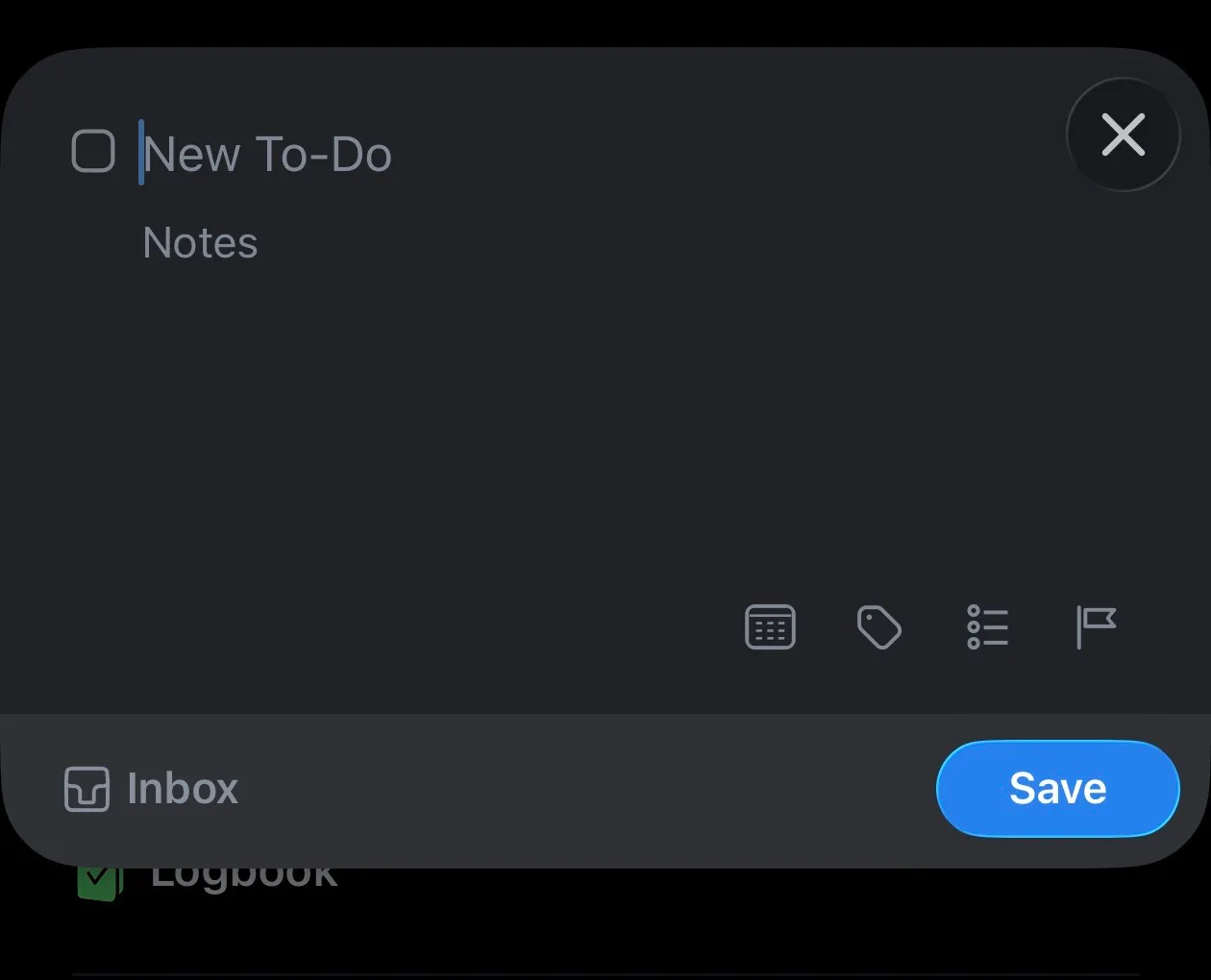
What I wanted instead
Quick capture should feel like jotting something on a sticky note: type, drop, done.
When in this mindset, I don’t care for adding deadlines or projects — I can do this later in my Weekly Review.
That meant avoiding the native Things action entirely — the fix was to use the URL scheme instead.

The trick: use the Things URL scheme
Things exposes a lightweight URL API:
things:///add?title=Buy%20milkBy using this scheme, you can add tasks silently in the background. Perfect for Lock Screen shortcuts.
I also sometimes want to add a task straight to my Today list. Adding &when=today does that, while &when=evening places it in the Evening section of the Today list. I find Evening useful for tasks I want to see today, but not until I have finished work. Without a when parameter, the task goes to the Inbox.
Building the shortcut
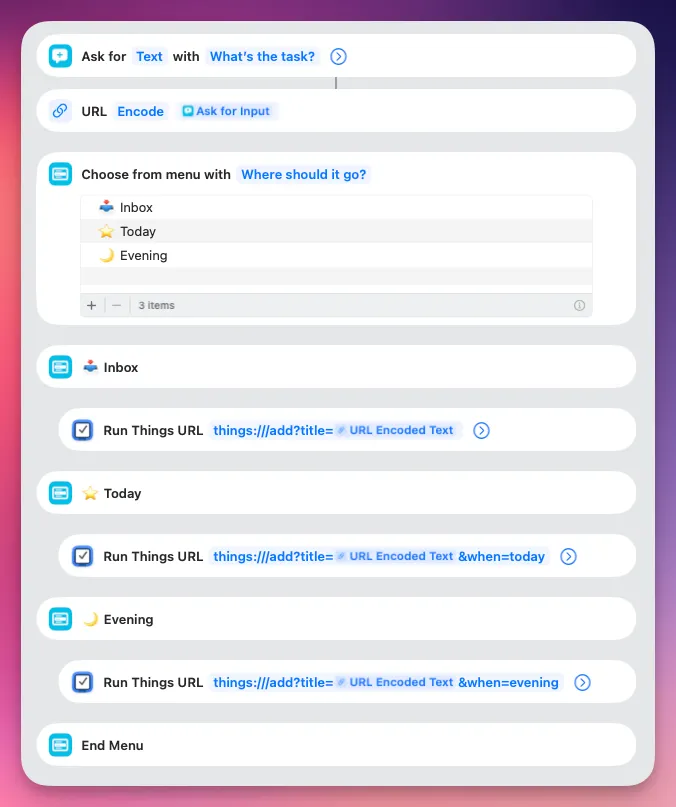
Here’s the exact structure of my shortcut:
-
Ask for Text:
Prompt: What’s the task?
-
Choose from Menu:
Prompt: Where should it go?
Options: Inbox, Today, Evening
-
Inbox →
things:///add?title=[Provided Text] -
Today →
things:///add?title=[Provided Text]&when=today -
Evening →
things:///add?title=[Provided Text]&when=evening
-
That’s it. No app launch, no modal, no distraction.
Example: adding a task from the Lock Screen
Here’s what it looks like in practice:
- Tap the widget on the Lock Screen.
- A tiny text prompt appears: What’s the task?
- Type your task (e.g., “Buy new contact lenses”).
- Choose where it should go: Inbox, Today, or Evening.
- The shortcut runs, and the task appears in Things in the background.

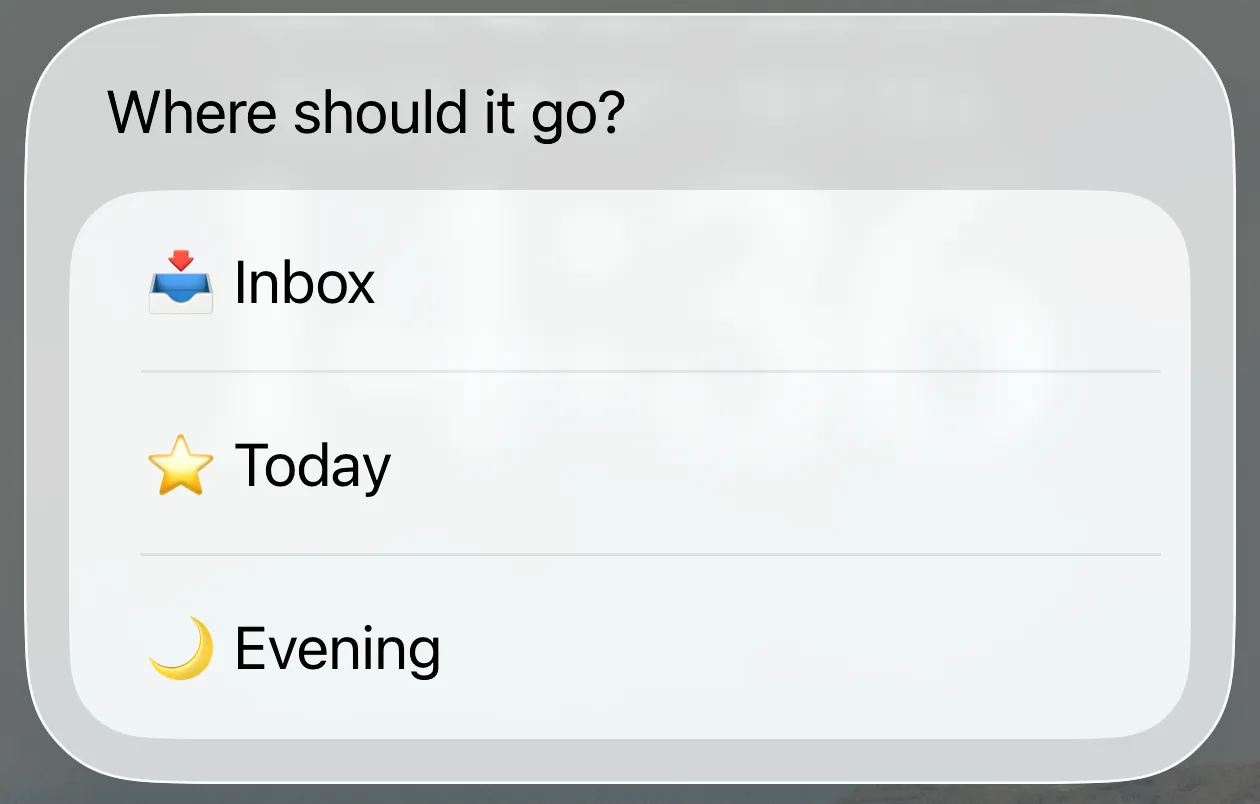

Your capture is sitting in Things, without needing to leave the Lock Screen.
Get the shortcut
If you want to use the exact setup I’m running, you can grab it here:
Add it to your Lock Screen or Action Button and you’re good to go.
When not to use this
This shortcut is bare bones by design. If you regularly add:
- deadlines
- tags
- project/area
- or longer notes
…while capturing, the URL scheme can handle those — but the flow becomes slower and a bit more fiddly. At that point, the official Things sheet might actually suit you better.
Final thoughts
If you’re a Things 3 user who wants true quick capture, ditch the default Things action. The URL scheme keeps everything lightweight, invisible, and fast — exactly what capturing should feel like. And if you’re wondering why I haven’t mentioned Siri… it’s because I like my capture flows to actually work. Don’t get me started.